
Feishu bot
Feishu (Lark) is a team chat platform used by companies for messaging and collaboration. This plugin connects OpenClaw to a Feishu/Lark bot using the platform’s WebSocket event subscription so messages can be received without exposing a public webhook URL.Plugin required
Install the Feishu plugin:Quickstart
There are two ways to add the Feishu channel:Method 1: onboarding wizard (recommended)
If you just installed OpenClaw, run the wizard:- Creating a Feishu app and collecting credentials
- Configuring app credentials in OpenClaw
- Starting the gateway
openclaw gateway statusopenclaw logs --follow
Method 2: CLI setup
If you already completed initial install, add the channel via CLI:openclaw gateway statusopenclaw gateway restartopenclaw logs --follow
Step 1: Create a Feishu app
1. Open Feishu Open Platform
Visit Feishu Open Platform and sign in. Lark (global) tenants should use https://open.larksuite.com/app and setdomain: "lark" in the Feishu config.
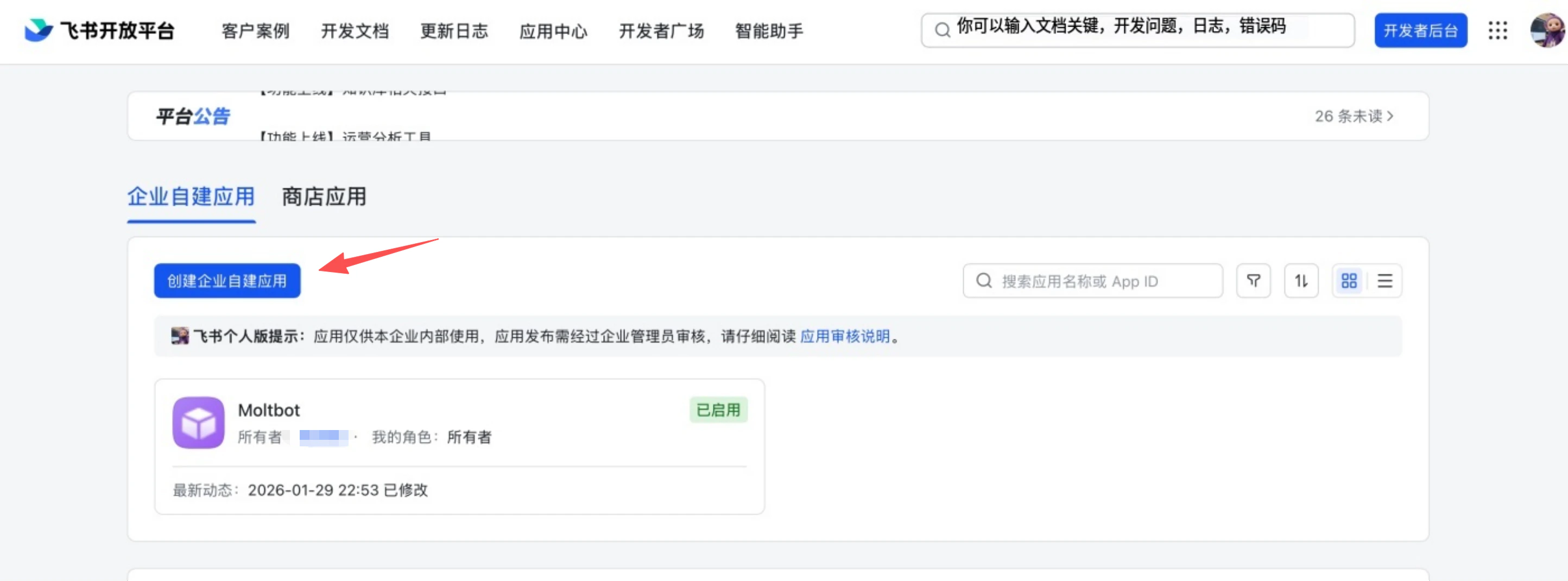
2. Create an app
- Click Create enterprise app
- Fill in the app name + description
- Choose an app icon
3. Copy credentials
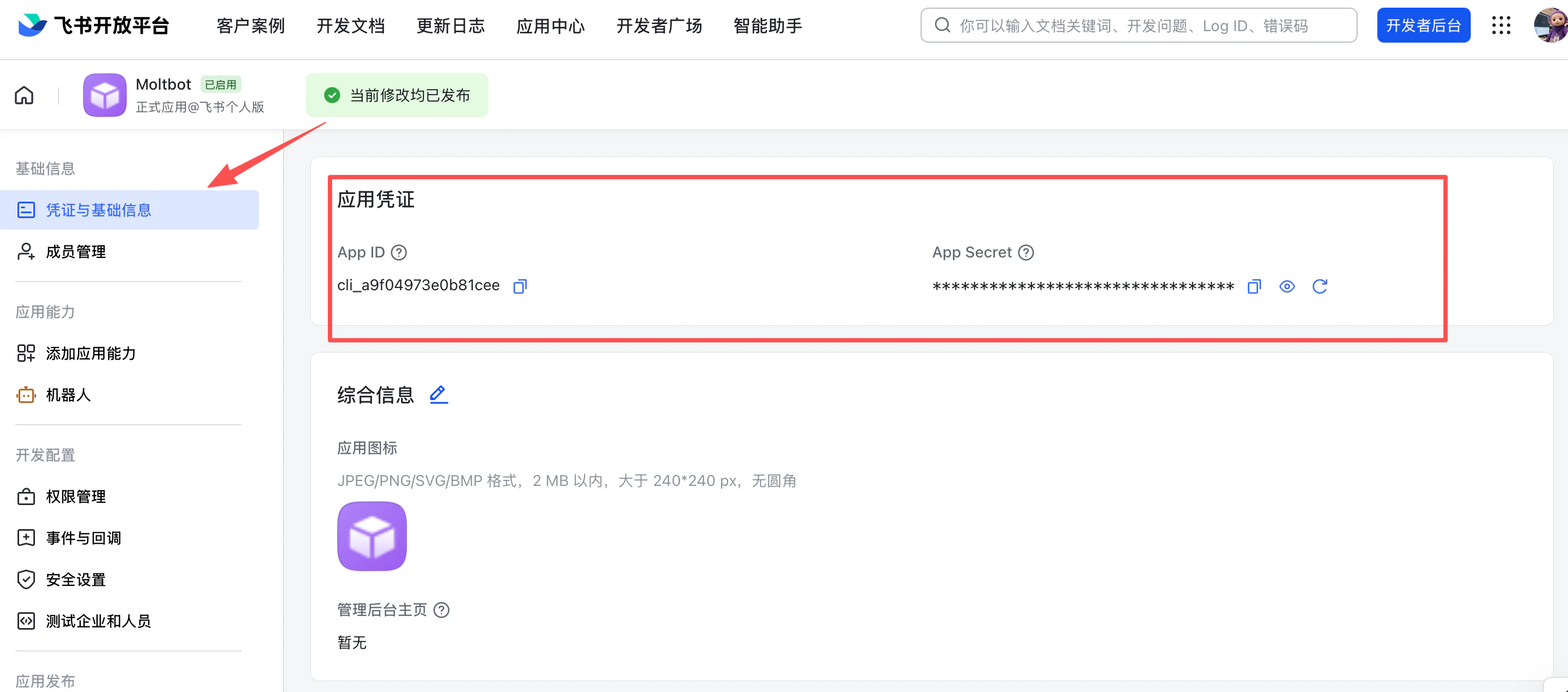
From Credentials & Basic Info, copy:- App ID (format:
cli_xxx) - App Secret
4. Configure permissions
On Permissions, click Batch import and paste: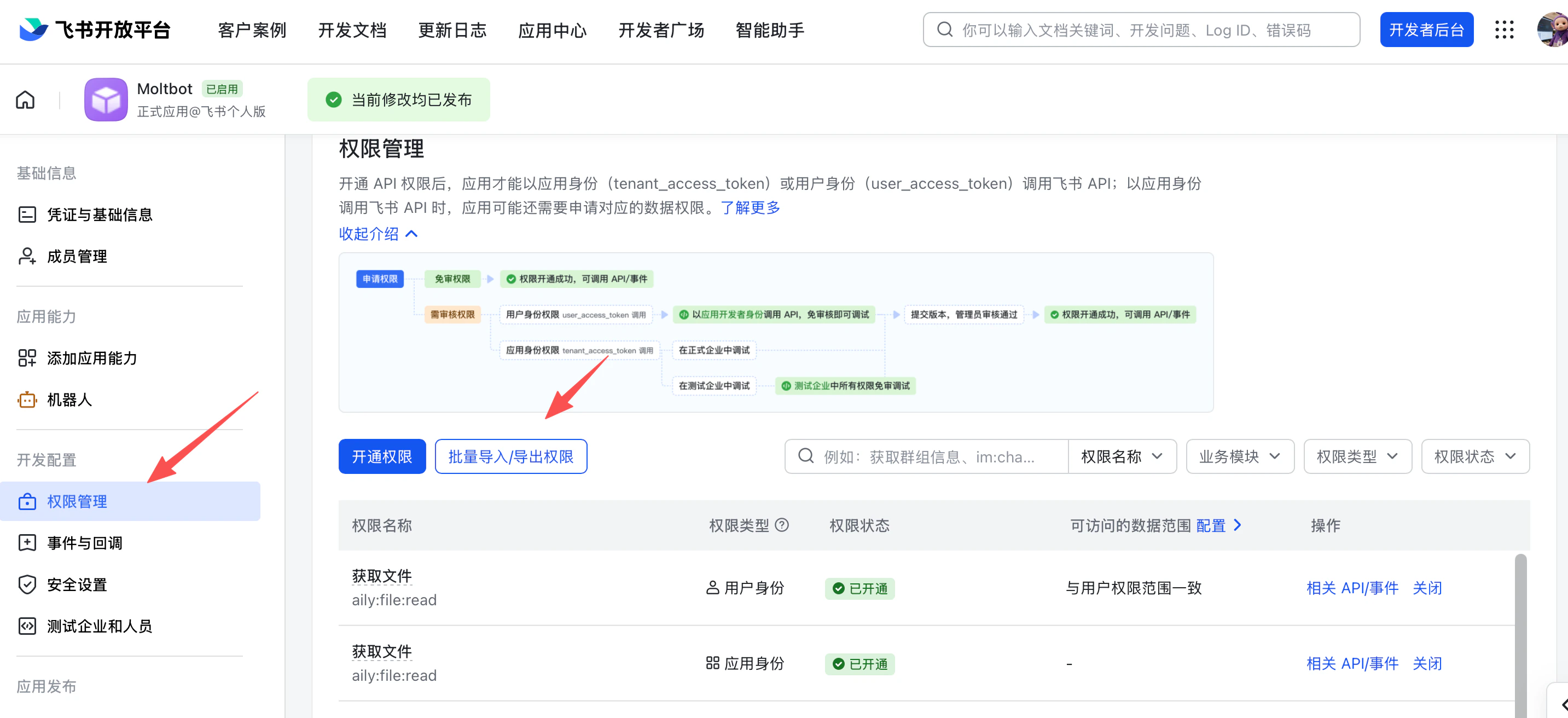
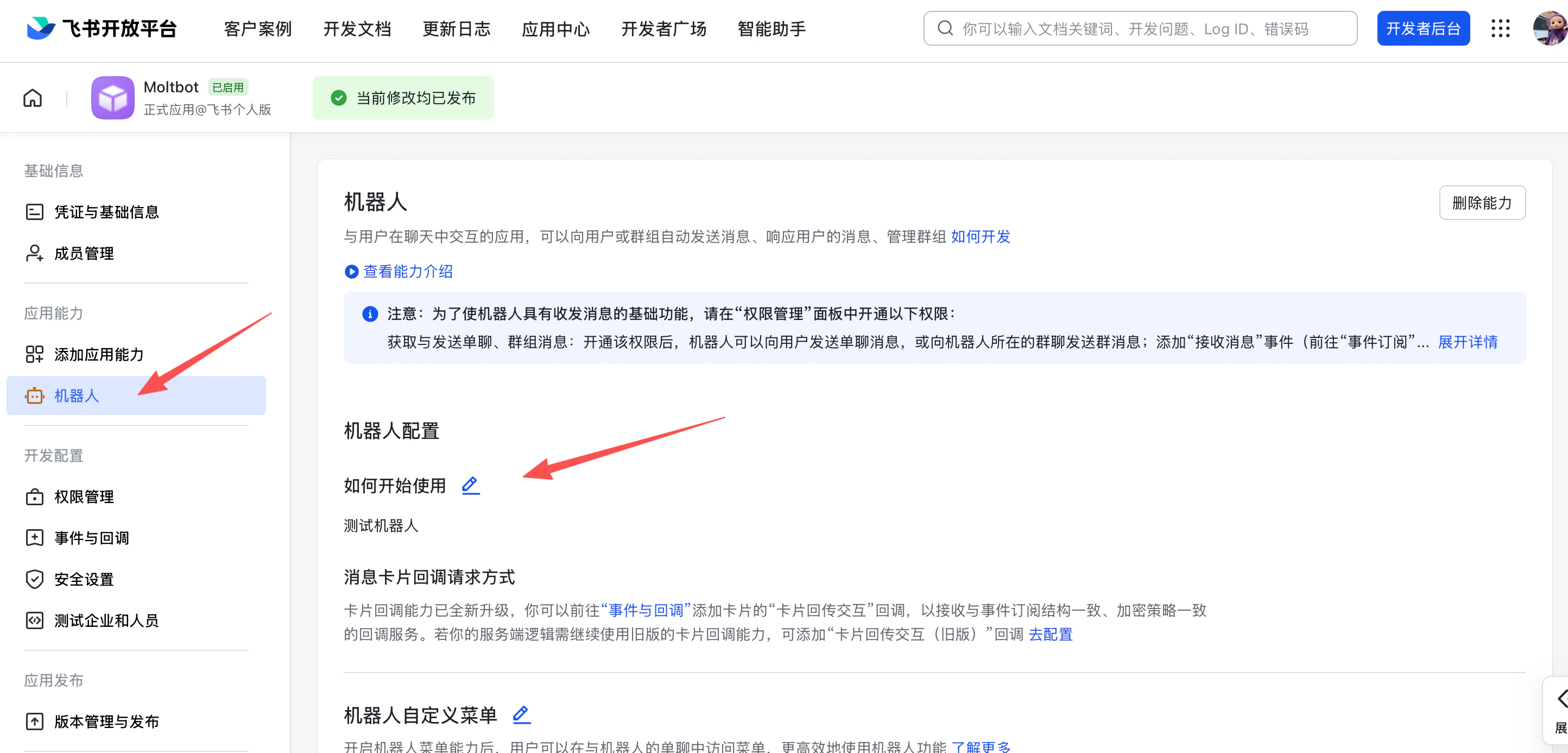
5. Enable bot capability
In App Capability > Bot:- Enable bot capability
- Set the bot name
6. Configure event subscription
⚠️ Important: before setting event subscription, make sure:- You already ran
openclaw channels addfor Feishu - The gateway is running (
openclaw gateway status)
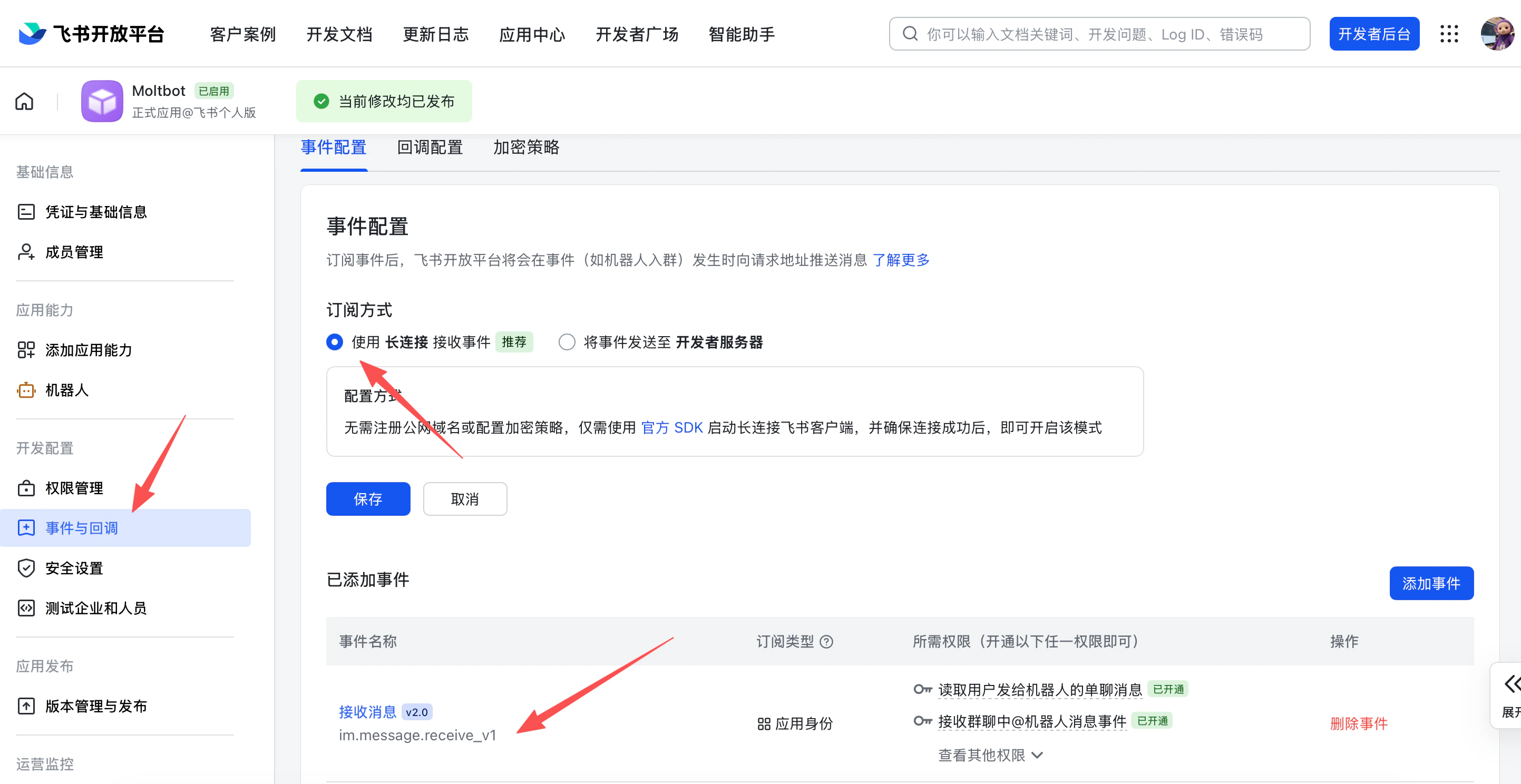
- Choose Use long connection to receive events (WebSocket)
- Add the event:
im.message.receive_v1
7. Publish the app
- Create a version in Version Management & Release
- Submit for review and publish
- Wait for admin approval (enterprise apps usually auto-approve)
Step 2: Configure OpenClaw
Configure with the wizard (recommended)
Configure via config file
Edit~/.openclaw/openclaw.json:
Configure via environment variables
Lark (global) domain
If your tenant is on Lark (international), set the domain tolark (or a full domain string). You can set it at channels.feishu.domain or per account (channels.feishu.accounts.<id>.domain).
Step 3: Start + test
1. Start the gateway
2. Send a test message
In Feishu, find your bot and send a message.3. Approve pairing
By default, the bot replies with a pairing code. Approve it:Overview
- Feishu bot channel: Feishu bot managed by the gateway
- Deterministic routing: replies always return to Feishu
- Session isolation: DMs share a main session; groups are isolated
- WebSocket connection: long connection via Feishu SDK, no public URL needed
Access control
Direct messages
-
Default:
dmPolicy: "pairing"(unknown users get a pairing code) -
Approve pairing:
-
Allowlist mode: set
channels.feishu.allowFromwith allowed Open IDs
Group chats
1. Group policy (channels.feishu.groupPolicy):
"open"= allow everyone in groups (default)"allowlist"= only allowgroupAllowFrom"disabled"= disable group messages
channels.feishu.groups.<chat_id>.requireMention):
true= require @mention (default)false= respond without mentions
Group configuration examples
Allow all groups, require @mention (default)
Allow all groups, no @mention required
Allow specific users in groups only
Get group/user IDs
Group IDs (chat_id)
Group IDs look likeoc_xxx.
Method 1 (recommended)
- Start the gateway and @mention the bot in the group
- Run
openclaw logs --followand look forchat_id
User IDs (open_id)
User IDs look likeou_xxx.
Method 1 (recommended)
- Start the gateway and DM the bot
- Run
openclaw logs --followand look foropen_id
Common commands
Note: Feishu does not support native command menus yet, so commands must be sent as text.
Gateway management commands
Troubleshooting
Bot does not respond in group chats
- Ensure the bot is added to the group
- Ensure you @mention the bot (default behavior)
- Check
groupPolicyis not set to"disabled" - Check logs:
openclaw logs --follow
Bot does not receive messages
- Ensure the app is published and approved
- Ensure event subscription includes
im.message.receive_v1 - Ensure long connection is enabled
- Ensure app permissions are complete
- Ensure the gateway is running:
openclaw gateway status - Check logs:
openclaw logs --follow
App Secret leak
- Reset the App Secret in Feishu Open Platform
- Update the App Secret in your config
- Restart the gateway
Message send failures
- Ensure the app has
im:message:send_as_botpermission - Ensure the app is published
- Check logs for detailed errors
Advanced configuration
Multiple accounts
Message limits
textChunkLimit: outbound text chunk size (default: 2000 chars)mediaMaxMb: media upload/download limit (default: 30MB)
Streaming
Feishu supports streaming replies via interactive cards. When enabled, the bot updates a card as it generates text.streaming: false to wait for the full reply before sending.
Multi-agent routing
Usebindings to route Feishu DMs or groups to different agents.
match.channel:"feishu"match.peer.kind:"direct"or"group"match.peer.id: user Open ID (ou_xxx) or group ID (oc_xxx)
Configuration reference
Full configuration: Gateway configuration Key options:dmPolicy reference
Supported message types
Receive
- ✅ Text
- ✅ Rich text (post)
- ✅ Images
- ✅ Files
- ✅ Audio
- ✅ Video
- ✅ Stickers
Send
- ✅ Text
- ✅ Images
- ✅ Files
- ✅ Audio
- ⚠️ Rich text (partial support)